
Connection Synchronisation (WorkflowMax)
Each Connection keeps your reporting database up to date with your WorkflowMax data.
You can rely on the daily automatic sync, or run manual syncs at any time from the Connection page.
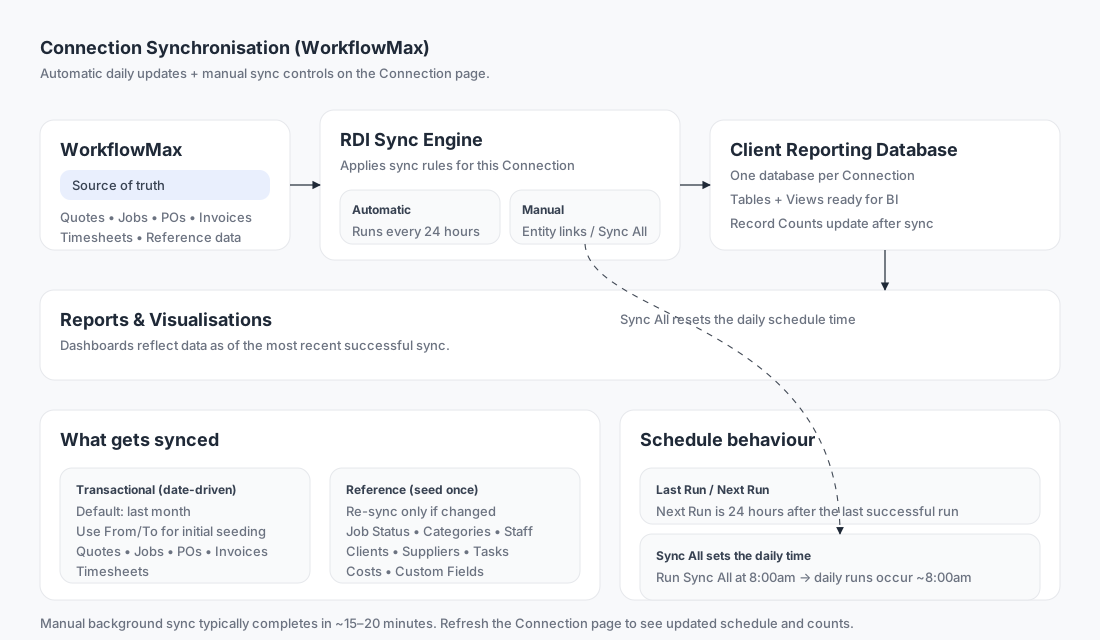
Diagram: how synchronisation works
Connection page guide
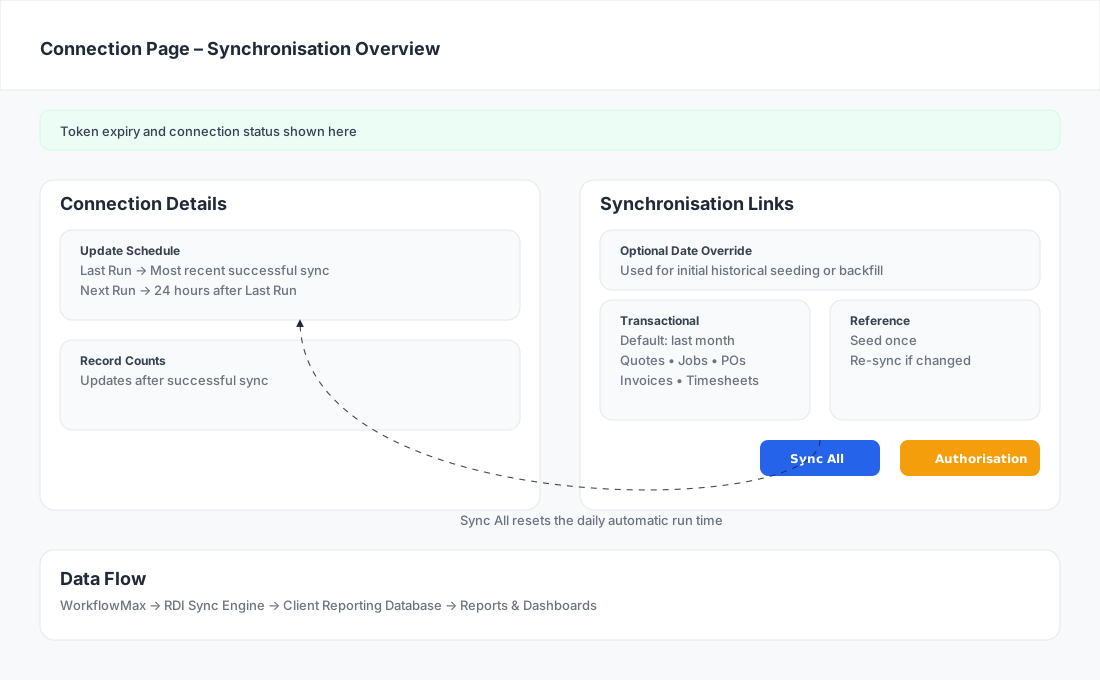
Callouts
1) Token expiry banner (top of page)
Shows when the current authorisation token expires. If it has expired, use Authorisation to re-connect.
2) Update Schedule (left panel)
Displays the automatic sync schedule:
- Last Run: the last successful background sync
- Next Run: the next scheduled run time (24 hours after Last Run)
- Enabled: whether the schedule is active for this Connection
3) Record Counts (left panel)
Shows the current size of key datasets in the reporting database. After sync, counts may increase if new transactions were found.
4) Date range overrides (right panel: From Date / To Date)
Optional date filters used when you need to seed or backfill older data (typically older than the default “last month” range).
5) Individual entity links (right panel list)
Run a targeted sync for a specific dataset (e.g. Jobs or Invoices). Useful for “just update this one thing”.
6) Sync buttons (bottom right)
- Sync All: runs a full background sync for the Connection
- Authorisation: re-authorise access to WorkflowMax (when required)
- Token Refresh: refreshes the token where supported/needed
Automatic daily synchronisation
Every Connection runs an automatic background sync every 24 hours.
- It applies updates in the background.
- The timing is controlled by the Last Run / Next Run values.
- Reports and dashboards reflect data up to the most recent successful run.
Manual synchronisation options
Manual syncs are started from the Connection page and run in the background.
Individual entity sync links
Each link runs a sync for a single dataset.
Transactional (date-driven) entities
These default to pulling records created in the last month, and you can optionally override dates using From Date / To Date:
- Quotes
- Jobs
- Purchase Orders
- Invoices
- Timesheets
Typical use: initial setup (historical loading), backfilling older periods, or fixing a specific gap.
Reference / “seed once” entities
These usually only need to be seeded once, and you would re-sync them only if something changes in WorkflowMax:
- Job Categories, Job Status
- Tasks, Costs, Leads
- Clients, Suppliers, Staff
- Custom Fields
Typical use: a new Job Status was added, a category changed, staff list updated, etc.
Sync All (full background sync)
Sync All re-synchronises the Connection in the background and typically completes in 15–20 minutes.
After it completes:
- Last Run and Next Run update
- Record Counts may update (if new transactions were imported)
- Refresh the page to see the new schedule
Sync All also sets your daily sync time
When you run Sync All, it sets the preferred “time of day” for future automatic runs.
Example:
- If you run Sync All at 8:00am, future automatic syncs will occur at ~8:00am each day.
This helps you align daily reporting freshness with when your business wants data updated.
Quick Start – New Connection Setup
Use this checklist when a client is newly connected and wants reporting-ready data.
Step 1 — Confirm authorisation
Open the Connection page and check the token status.
- If authorisation is required, click Authorisation and complete the sign-in flow.
Step 2 — Seed reference entities (one-time)
Run these once so lookups and relationships are ready:
- Job Status, Job Categories
- Staff, Clients, Suppliers
- Tasks, Costs
- Custom Fields
Tip: If you prefer, you can just run Sync All and it will cover everything.
Step 3 — Seed historical transactional data (optional but common)
If the client wants data older than the last month:
- Set From Date (and optionally To Date) to the required range
- Run the relevant transactional syncs:
- Quotes, Jobs, Purchase Orders, Invoices, Timesheets
Tip: If there’s a lot of history, seed in chunks (e.g. quarter-by-quarter) to keep each run manageable.
Step 4 — Run Sync All to establish the daily schedule time
Run Sync All at the preferred time of day for ongoing daily updates (e.g. 7–8am).
- Wait ~15–20 minutes
- Refresh the page to confirm Last Run / Next Run updated
Step 5 — Validate counts and reporting
Check Record Counts and confirm dashboards/queries show the expected data.
Troubleshooting tips
- Schedule looks unchanged right after a manual run: wait ~15–20 minutes and refresh.
- Counts didn’t move: there may be no new transactions in the period you synced.
- Missing older transactions: set a wider From Date and re-run the relevant transactional entity sync.
- Authorisation issues: use Authorisation to reconnect if the token has expired or was revoked.